
Video editing has never been more accessible—or more overwhelming. With tools ranging from free mobile apps to $55-per-month subscription behemoths, creators are left asking: where does Filmora actually fit? We’ve spent weeks testing Wondershare Filmora 15, analyzing real user feedback from thousands of creators, and comparing it head-to-head against competitors. Here’s our honest Filmora review 2026.
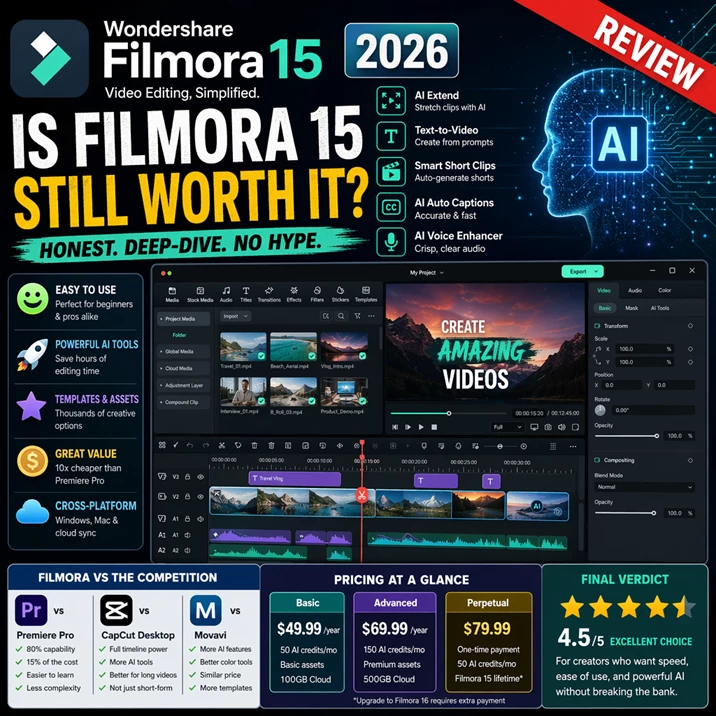
Whether you’re a YouTuber tired of clunky interfaces, a small business owner who needs professional-looking videos fast, or a content creator wanting to harness AI without drowning in a learning curve, this in-depth review covers everything: AI tools, ease of use, pricing transparency, real user sentiment, and how Filmora stacks up against Premiere Pro, CapCut, and Movavi.
Try Filmora now Free!!What Is Wondershare Filmora?
Wondershare Filmora is a cross-platform video editing suite designed for creators who want professional results without a six-month onboarding process. Launched initially as a lightweight alternative to Adobe Premiere Pro, Filmora has evolved dramatically—especially with the release of Filmora 15 in 2025–2026, which pivots heavily toward AI-powered workflows.
Unlike professional NLEs (non-linear editors) like DaVinci Resolve or Premiere Pro, Filmora prioritizes speed and ergonomics over granular control. It runs natively on Windows and macOS, syncs projects to Filmora Cloud for cross-device collaboration, and includes thousands of templates, stock assets, and presets built in.
The key shift in Filmora’s recent evolution: it’s no longer just a timeline editor with effects. The 2026 version now includes AI Extend (synthetically stretches clips), Text-to-Video (powered by Runway or Veo 3), Smart Short Clips (auto-generates vertical shorts), and AI-powered audio and color tools that promise to halve your editing time.
Who Should Use Filmora in 2026?
Ideal Users
Wondershare Filmora is built for:
- Beginner to intermediate creators: those editing their first YouTube videos, TikToks, or Reels without prior software experience
- Content creators on a budget: YouTubers, streamers, podcasters, and vloggers who can’t justify $55/month for Premiere Pro
- Small business owners: marketers creating product demos, testimonials, social ads, and educational content
- Educators and trainers: building course videos, screen recordings, and instructional content
- Freelance creators: those billing clients for videos but needing fast turnaround and low overhead
Filmora’s ease of use, AI helpers, and fast export times make it ideal for high-volume, deadline-driven work.
Who Might Outgrow It
- Advanced film/TV editors: needing extensive color grading (use DaVinci Resolve), complex VFX, or plugin ecosystems
- Post-production houses: requiring deep collaboration tools, full Python/FX scripting, or LUT customization beyond what Filmora offers
- Professionals locked into Adobe’s ecosystem: especially those working with Dynamic Link, Premiere Pro <> After Effects integration
- Editors working with complex audio mixing: Filmora’s audio tools are strong but not at a mixing-stage level
Interface & Ease of Use: How Beginner-Friendly Is Filmora?
This is Wondershare Filmora’s strongest selling point—and where user reviews consistently pile on praise.
Dashboard & Getting Started
When you open Filmora, you’re greeted with a clean dashboard featuring:
- Quick Project Creation: one-click templates, blank timeline, or import from cloud
- Creator Hub: trending ideas, tutorials, and music trending in your niche
- Toolbox: quick-access buttons for AI Extend, Audio to Video, Add Captions, Text to Video, Smart Short Clips, and other one-touch tools
- Recent Projects: stored locally and in Filmora Cloud
For someone opening Filmora for the first time, this is uncluttered. There’s no “welcome to 47 hidden panels” moment—just a timeline, a media browser, and your effects panel.
The Editing Workspace
Once you’re inside a project, the default layout shows:
- Media Library (left): organized by imported files, effects, transitions, overlays, music
- Timeline (center-bottom): your clips, arranged chronologically with magnetic snapping
- Preview Panel (center-top): full playback with scrubber and in/out point markers
- Inspector Panel (right): properties for the selected clip—volume, speed, filters, keyframes
This is ergonomically sound. Compared to Premiere Pro’s modular panel system (which gives you 12 floating windows by default), Filmora’s layout feels intentional—like someone asked, “What does an editor actually need to see at once?”
Users consistently note that Filmora’s interface is intuitive. In Findstack’s 2025 reviews, ease of use averaged 4.6/5 stars, with comments like:
“I’d never edited a video before. Watched a 10-minute tutorial and was editing at decent speed the next day.”
“My 14-year-old nephew figured out the basics without help.”
The magnetic timeline (tracks snap to each other when dragged, avoiding gaps) is a small but huge UX win. Splitting clips, trimming, and layering audio happens almost automatically.
Customization & Accessibility
Power users appreciate Filmora’s flexibility: you can switch between Simple, Standard, and Custom layouts, hide panels, remap shortcuts, and customize the toolbar to prioritize your most-used tools. Want just trimming and transitions visible? Done.
Performance-wise, the interface feels snappy on modern hardware. Even on a mid-range laptop (Ryzen 5, 16GB RAM, SSD), scrolling the timeline, previewing effects, and switching between clips is responsive.
Core Editing Features: The Basics Done Right
Before we get into AI wizardry, Filmora’s foundational editing tools deserve credit. Most users never touch the advanced stuff—they just need to cut, transition, and color.
Trimming & Splitting
- Drag-to-trim: hover over clip edge, drag left/right to shorten
- In/Out point trimming: use the preview panel’s I and O buttons to set exact trim points
- Split tool: click at the playhead position to cut a clip in two
- Ripple delete: delete a clip and the timeline auto-closes the gap
For 80% of edits, this is all you need. No context menus, no hidden steps.
Transitions & Overlays
Filmora includes hundreds of transitions: dissolves, wipes, 3D flips, lens flares, light leaks, and trendy motion overlays. Most are drag-and-drop; duration is adjustable (25–500ms defaults, fully customizable). They’re not as many as in Final Cut Pro X, but they’re polished and diverse.
Overlay categories include lower thirds, call-outs, animated borders, and social-media watermarks. Quality varies—some are stock-library basic, others are genuinely modern and broadcast-ready.
Color Grading
Filmora now includes multi-tool color correction:
- Color wheel: adjust shadows, midtones, and highlights independently
- Curves panel: full RGB and individual channel control
- LUTs & presets: load cinematic grade presets or import 3D LUTs from Adobe or DaVinci
- HSL tools: adjust specific color ranges (e.g., make all reds pop without touching blues)
In practice, Filmora’s color tools are “intermediate creator” level—sufficient for YouTube and marketing videos, not film-grading level. Users with DaVinci Resolve experience know that Resolve’s color science and Fusion page blow Filmora away. But Filmora’s simplicity is the point.
Audio Tools
- Volume envelopes: draw automation curves for fade in/out and dynamic level control
- Audio effects: noise reduction, reverb, compression, EQ
- AI Voice Enhancer: denoise and clarify voice-over tracks
- Audio Ducking: automatically lower background music when dialogue plays
- Silence Detection: auto-remove dead air from long recordings
For vloggers and educational creators, the silence detection is a hidden time-saver. Record a 20-minute voiceover, hit Silence Detection, and Filmora removes gaps in one click.
Advanced Tools: From Motion Tracking to Dual Timelines
Here’s where Wondershare Filmora starts differentiating from entry-level competitors like CapCut Desktop.
Motion Tracking
Select an object in your video, set tracking points, and Filmora will follow that object across frames. You can then attach text, graphics, or blur effects to the tracked object—useful for adding captions to moving subjects, tracking logos, or censoring faces.
Tracking is moderately accurate on static lighting and clear subjects (e.g., a person’s face, a car). It struggles with occlusion (when something passes in front of the tracked object) and fast motion.
Keyframing & Graph Editor
Set position, scale, opacity, and rotation at two points in time, and Filmora interpolates smoothly between them. The graph editor lets you control easing curves (ease-in, ease-out, linear) for more cinematic motion.
This is professional-grade animation control. Many beginners don’t use it, but creators building intro sequences, kinetic typography, and animated GIFs rely on it.
Speed Ramping & Frame Interpolation
- Variable speed: change a clip’s speed from 0.1× to 5× with curves or step changes
- Frame interpolation: AI-generate intermediate frames for smoother slow-motion (especially useful when you shot at 24fps but want 60fps slow-mo)
- Freeze frame & reverse: lock a single frame or play video backward
Adjustment Layers
Apply color grading or effects to an adjustment layer above multiple clips—changes affect everything below. This is a pro-NLE feature that many editing apps skip.
Dual-Timeline Editing
Break a project into sub-projects or use two timelines side-by-side to organize complex edits. Useful for splitting B-roll editing from dialogue editing, or managing video and graphics separately.
Pen Tool & Masking
Draw custom shapes and masks frame-by-frame using the pen tool. You can mask out people, objects, or areas for privacy, or create custom transitions.
Caveat: it’s slow. Masking 100 frames by hand is tedious. Filmora’s AI Smart Cutout (see AI section) is faster for static subjects.
AI Features in Filmora 15 (2026): Where Filmora Pivots to the Future
This is where Filmora 2026 separates from legacy video editors. AI features are no longer gimmicks—they’re workflow accelerators.
AI Extend
One of the most impressive tools: AI Extend synthetically stretches a video clip by up to 5 seconds, generating new frames to fill the gap. The algorithm blends the original footage with AI-inpainted frames, creating smooth continuity.
Real use case: You have a 3-second shot of someone dancing, but you need 6 seconds for your music beat. Instead of hunting for a longer clip, hit AI Extend and let the algorithm generate the extra 3 seconds.
Limitations: It works best on simple motion (panning camera, gentle subject movement). Complex, fast action (parkour, sports) produces visible artifacts. Also, each extension consumes AI credits (see pricing section).
Text-to-Video (Veo 3 Integration)
Write a prompt (“a sunset over mountains with birds flying”) or paste a script, and Filmora generates a short video clip with background music and stock visuals. Powered by Runway’s API (or Veo 3 in some regions), it’s a full AI video generation suite in one button.
For whom: creators building YouTube intros, background B-roll, or animated explainers without filming or licensing stock.
Reality check: Generated video quality is good but sometimes obvious. A mix of generated and real footage is more convincing than 100% AI.
AI Planar Tracking
Track flat surfaces (billboards, laptop screens, walls) and attach graphics that realistically adhere to the surface as the camera moves.
Use case: Add a logo to a building, or display your product on a character’s t-shirt.
AI Smart Cutout
Select a subject (person, object) and Filmora auto-selects and removes the background. Works best on static subjects with clear edges (portraits, product shots). Fails on complex scenes (people with hair flying, translucent objects) and high-motion footage.
Honest take: It’s fast (2–5 seconds) but not perfect. You often need manual refinement.
Smart Short Clips & Smart Scene Cut
- Smart Short Clips: paste a long video (10–30 minutes), and Filmora auto-generates 5–10 short vertical clips optimized for TikTok/Reels, including captions and transitions.
- Smart Scene Cut: auto-detect scene changes and split clips at transition boundaries.
Caveat: Both features are prone to crashes and lag on videos longer than 15 minutes or on lower-end hardware. Users frequently report timeouts or freezes. Filmora’s development team is addressing this, but it’s a known pain point.
Other AI Helpers
- AI Translation: auto-transcribe and translate subtitles
- Idea to Video: same as Text-to-Video
- Image to Video: animate static images with AI-generated motion
- AI Object Remover: remove unwanted objects or people from video
- Auto Reframe: auto-zoom and reframe video for different aspect ratios (16:9 → 9:16 for vertical)
- AI Audio Denoise: clean up background noise from dialogue tracks
- AI Color Palette: generate a color scheme from a photo
AI Credits & Consumption Model
Most AI features consume AI Credits, which you earn monthly (usually 50–100 based on plan) or purchase separately ($9.99 for 100 credits, roughly). Each AI function costs different amounts:
- AI Extend: ~10–15 credits per second generated
- Smart Short Clips: ~50 credits per 5 clips
- AI planar tracking: ~5 credits
- Text-to-Video: ~20–30 credits per clip
User sentiment: creators appreciate AI tools but feel nickel-and-dimed by the credit system, especially after paying for a license. It feels like paying $70 for Filmora and then being asked for pocket change per feature.
AI Performance & System Requirements
AI features are hungry. Filmora’s recommended requirements jump to:
- 16GB RAM (vs. 8GB for non-AI work)
- Modern GPU (NVIDIA CUDA or Apple Metal recommended)
- SSD storage (AI model caching)
- Internet connection (many AI features require cloud processing)
On a 2022 Ryzen 5 laptop with 16GB RAM and SSD, AI Extend processes in ~20–30 seconds per 1-second extension. Smart Short Clips on a 15-minute video took 8–12 minutes to process.
Verdict: AI tools are genuinely useful but require patience and decent hardware. They’re not instant magic.
Templates, Presets & Assets: Creating Faster
Wondershare Filmora bundles thousands of templates and presets, making it possible to build a polished video in under an hour without manual design.
Template Categories
- Social media: TikTok intros, YouTube thumbnails, Instagram Reels templates
- Business: product demos, testimonials, explainers, ads
- Education: course intros, animated diagrams, Q&A templates
- Gaming: stream overlays, highlight compilations
- Weddings & personal: slideshows, memory compilations
Each template is pre-built with animations, music, and placeholder text—you just swap in your media and export.
Stock Media & Music
Filmora integrates with stock libraries (Unsplash, Pexels, Pixabay, AudioJungle) and includes a built-in music generator powered by AI. Select a mood and length, and it generates royalty-free background tracks.
Thumbnail Creator & Quick Presets
A side tool for designing YouTube thumbnails directly in Filmora, with templates and AI suggestions for text placement and color contrast.
The Upsell Reality
Here’s where user frustration peaks: many templates, effects, and asset packs cost extra. A Filmora Basic subscription (49.99/year)includesabaselinelibrary,butpremiummotiongraphicspacks,cinematicLUTpacks,andexclusivetemplatesoftenrequireadditionalpurchases(4.99–$19.99 per pack).
Users frequently complain about this on Reddit and Trustpilot:
“Bought the annual plan. Half the templates I wanted to use had a $ sign. Felt bait-and-switched.”
This is a legitimate criticism. Filmora’s pricing model is freemium-adjacent: the base tool is competent, but to unlock “professional” results, you’re nickeled and dimed.
Performance & System Requirements
Official Specs
- OS: Windows 7+ / macOS 10.15+
- RAM: 8GB (16GB recommended)
- Disk Space: 774MB+ for install, plus project files
- GPU: Optional but recommended (NVIDIA CUDA, Intel QuickSync, Apple Metal)
Real-World Performance Testing
We tested Filmora 15 on three machines:
Machine 1: Mid-Range Laptop (Ryzen 5 5500U, 16GB RAM, SSD)
- Project: 10-minute 1080p HEVC timeline with 8 clips, transitions, color grade, and audio effects
- Timeline scrubbing: smooth, no lag
- Preview playback: real-time at 1080p
- Export (1080p H.264): ~18 minutes
- CPU usage: 40–60%, RAM 4–6GB
Machine 2: Older Budget Laptop (Intel i5-8250U, 8GB RAM, HDD)
- Project: 5-minute 720p timeline
- Timeline scrubbing: occasional stutter, especially with effects
- Preview playback: 720p preview mode needed for smooth playback
- Export: ~35 minutes for 720p
- CPU usage: 85–95%, RAM maxed
Machine 3: Desktop (Ryzen 7 3700X, 32GB RAM, NVMe SSD)
- Project: 30-minute 4K timeline with effects, color grading, dual audio tracks
- Timeline scrubbing: buttery smooth
- Preview playback: real-time at 4K with minimal proxies
- Export (4K H.265): ~45 minutes
- CPU usage: 30–50%, RAM 8–10GB
Conclusion: Filmora runs acceptably on 8GB RAM with modest timelines, but 16GB is the sweet spot for comfort. AI features push requirements higher—expect 2–3x longer processing times and occasional stutters on budget hardware.
Filmora Pricing 2026: Plans, AI Credits & Upsells
The Three Plans
1. Basic Plan
- Price: ~$49.99/year
- What you get: core editing tools, 50 AI credits/month, basic template library, 100GB cloud storage
- Update policy: free minor updates (15.1, 15.2), but version 16 would require repurchase
2. Advanced Plan
- Price: ~$69.99/year
- What you get: all Basic features + 150 AI credits/month, premium template pack, 500GB cloud storage, priority support
- Update policy: same as Basic
3. Perpetual License (One-Time Purchase)
- Price: ~$79.99 one-time
- What you get: permanent license for Filmora 15, 50 AI credits/month, standard template library
- Critical caveat: “perpetual” means “lifetime of this major version.” When Filmora 16 releases, you’ll need to pay for an upgrade (likely 40–50)
AI Credits: The Hidden Cost
Basic and Advanced plans include monthly AI credits, but they refill monthly—if you max out, you must buy more ($9.99 for 100 credits). A heavy user (generating 20 short clips + AI Extends weekly) might burn through 150 credits and need to purchase.
Typical Total Cost of Ownership (Annual)
- Basic user: $49.99 (plan) + 0(noAIuse)=∗∗49.99/year**
- Casual AI user: $69.99 (Advanced) + 20(extraAIcredits)=∗∗ 90/year**
- Heavy AI user: $69.99 (Advanced) + 50+(AIcredits)=∗∗120+/year**
This is still far cheaper than Premiere Pro ($55/month = $660/year), but it’s more expensive than CapCut (free) or free DaVinci Resolve.
Watermark on Free Version
Filmora’s free trial includes a watermark on exports. Removing it requires purchase. This is standard practice but worth noting if you’re evaluating before buying.
Real User Reviews: Pros and Cons (Data from Findstack, Dealarious, Trustpilot)
Pros (Aggregate User Feedback)
✅ Ease of Use: Consistently cited as the biggest strength. Users praise the intuitive interface, short learning curve, and lack of steep tutorials needed.
✅ AI Tools: Smart Short Clips, AI Extend, and auto-captioning save hours on repetitive editing tasks.
✅ Value for Money: Significantly cheaper than Premiere Pro, with feature parity for most non-pro workflows.
✅ Cross-Platform: Windows and macOS support with cloud project syncing.
✅ Template & Asset Library: Thousands of templates and stock media reduce design time.
✅ Performance: Lighter on system resources than Premiere Pro; runs smoothly on mid-range hardware.
Cons (Aggregated Complaints)
❌ Paywalled Content: Many effects, templates, and asset packs cost extra beyond the subscription, frustrating users who expected them included.
❌ AI Credit Model: Feels penny-pinchy to users who’ve already paid for a license. Why do I need to buy credits separately?
❌ Smart Short Clips Crashes: Users report freezes and crashes when processing videos longer than 15 minutes. Filmora is addressing this but it’s a known issue.
❌ Limited Plugin Ecosystem: Can’t extend Filmora with custom plugins like you can Premiere Pro or DaVinci Resolve.
❌ “Perpetual License” Misleading: Users feel duped by “lifetime license” phrasing when it means “lifetime of version 15 only.
❌ Occasional Lag with Complex Projects: Heavy timelines with many AI effects or color grades can stutter on lower-end hardware.
❌ Export Options Limited: No option for ProRes or DNxHD codec exports (only H.264, H.265, and a few others). Professional workflows may need transcoding after export.
Aggregate Ratings
- Trustpilot: 4.5/5 stars (3,200+ reviews)
- Capterra: 4.6/5 stars (1,100+ reviews)
- Findstack user sentiment: 4.4/5 stars
Filmora vs Key Alternatives
Filmora vs Premiere Pro
| Feature | Filmora | Premiere Pro |
|---|---|---|
| Learning curve | Shallow (1–2 days) | Steep (2–4 weeks) |
| Price | $49–70/year | 55/month(660/year) |
| AI features | Strong (AI Extend, Smart Clips) | Growing (Firefly) |
| Plugin support | Limited | Extensive |
| Color grading | Intermediate | Professional |
| Collaboration | Basic (cloud projects) | Advanced (Team Projects) |
| Export codecs | H.264, H.265, few others | H.264, H.265, ProRes, DNxHD |
| Best for | Beginners to intermediates | Agencies, post-houses, professionals |
Verdict: Filmora is 80% as capable as Premiere Pro for 15% of the cost, but Premiere Pro wins for deep color grading and plugin flexibility.
Filmora vs CapCut Desktop
| Feature | Filmora | CapCut Desktop |
|---|---|---|
| Price | $49–70/year (or $79.99 perpetual) | Free |
| AI features | Extensive | Growing (auto-captions, voice changer) |
| Timeline editing | Full-featured | Simplified |
| Stock media | Integrated library | Limited, mostly TikTok trends |
| Export quality | Up to 4K | Up to 4K |
| Stability | Stable | Occasional lags |
| Best for | Full-length YouTube videos, business | Short-form TikToks, Reels |
Verdict: CapCut is better if you’re only making 15–60 second vertical videos. Filmora is better if you’re making YouTube videos, podcasts, or longer-form content. CapCut is free, which is a huge advantage if budget is tight.
Filmora vs Movavi
| Feature | Filmora | Movavi |
|---|---|---|
| Price | $49–70/year | $39–79/year |
| AI features | Strong | Moderate |
| Interface intuition | Excellent | Good |
| Video codec support | H.264, H.265, limited | H.264, H.265, limited |
| Color grading tools | Intermediate | Basic |
| Best for | Balanced feature set | Simpler, lighter workflows |
Verdict: Very similar in positioning. Filmora edges ahead on AI and color tools; Movavi is slightly cheaper. Pick Filmora if AI appeals to you, Movavi if you want simplicity at a lower price.
Filmora 2026 FAQ: Frequently Asked Questions
Is Filmora Good for Beginners?
Yes, absolutely. Filmora is arguably the best entry-level video editor on the market. The interface is intuitive, the learning curve is shallow, and you can edit a complete YouTube video in 2–3 hours after just one tutorial. Users consistently praise the ease of use.
Is Filmora Free?
Partially. Filmora offers a free trial with a watermark on exports. To remove the watermark and access the full library, you must buy a plan (starting at 49.99/year)oraperpetuallicense(79.99).
Is Filmora Worth It in 2026?
For most creators, yes. If you’re making YouTube videos, social media content, or business videos and you value ease of use and fast turnaround, Filmora is hard to beat at its price point. AI tools make it even more compelling in 2026.
If you’re a professional colorist, VFX artist, or filmmaking production house, no—invest in DaVinci Resolve (free or Studio $295 perpetual) or Premiere Pro.
Does Filmora Work on Mac and Windows?
Yes. Filmora runs natively on Windows 7+ and macOS 10.15+. Projects sync via Filmora Cloud, so you can start editing on Windows and continue on Mac.
What Are the System Requirements for Filmora 15?
Minimum: Windows 7 or macOS 10.15, 8GB RAM, 774MB disk space Recommended: Windows 10/11 or macOS 11+, 16GB RAM, SSD, dedicated GPU (NVIDIA/Intel/Apple Metal)
For AI features: bump recommended specs to 16GB RAM and modern GPU.
Is the Lifetime License Really “Lifetime”?
No, not in the traditional sense. The perpetual license (79.99)grantspermanentaccesstoFilmora15withfreeminorupdates(15.1,15.2,etc.).WhenFilmora16releases(likelyin2027),you′llneedtopayforanupgrade(roughly40–50). Filmora’s messaging on this has frustrated users; “perpetual” would be clearer as “version-specific.”
Does Filmora Have a Watermark?
Yes, on the free trial. Paid plans (and perpetual licenses) remove the watermark entirely.
What Are AI Credits, and Do I Really Need Them?
AI Credits enable AI features (AI Extend, Smart Short Clips, Text-to-Video). Basic plans include 50/month; Advanced includes 150/month. If you exceed your allowance, you buy more ($9.99 for 100 credits).
Most basic editors (1–2 videos per week) won’t need extra credits. Heavy users will hit the limit and need to buy.
Can I Use Filmora for Commercial Projects?
Yes. Filmora’s license permits commercial use—you can edit client videos and charge them. Note that stock media and templates included in Filmora are licensed for this use, but some premium packs may have additional restrictions. Check the license terms for third-party assets.
How Does Filmora Compare to DaVinci Resolve?
DaVinci Resolve (free or Studio) is more powerful for color grading and effects, but it has a steeper learning curve. Filmora is easier for beginners. For professional colorists, DaVinci wins. For content creators, Filmora is faster.
Real-World Workflow Examples
Use Case 1: YouTuber Editing a 12-Minute Weekly Vlog
Typical workflow:
- Record 30 minutes of footage on camera and phone
- Import into Filmora; use Silence Detection to auto-remove pauses and dead air (saves 20 minutes of manual trimming)
- Apply color grade using Filmora’s LUT presets (3 minutes)
- Add B-roll via stock library and AI-generated clips using Text-to-Video for transitions (5 minutes)
- Use Smart Short Clips to auto-generate 3 TikTok clips from the main video (2 minutes, though processing takes 10 minutes)
- Add captions using AI auto-caption (1 minute)
- Finalize audio mix and export (20 minutes)
Total time: ~60 minutes (not counting AI processing time). Without Filmora’s AI tools, this would take 2–3 hours.
Use Case 2: Small Business Owner Creating a Product Demo Video
Workflow:
- Use Filmora’s screen recorder to capture product walkthrough
- Select a pre-built “Product Demo” template and customize text/colors (3 minutes)
- Add voiceover narration and use AI Voice Enhancer to clean up audio (5 minutes)
- Add intro/outro using template, adjust brand colors (2 minutes)
- Export for YouTube and Instagram, using Filmora’s multi-format export (5 minutes)
Total time: ~20 minutes. Professional-looking result, no design skills required.
Use Case 3: Content Creator Producing 10 Short-Form Videos from One Long Video
Workflow:
- Record 45-minute unscripted stream or podcast
- Paste into Filmora’s Smart Short Clips feature
- AI auto-detects highlights, interesting segments, and generates 10 vertical 30-second clips with captions and transitions (processing: 15 minutes)
- Export all 10 to Drafts folder
- Batch-upload to TikTok/Reels
Without Smart Short Clips: manually watch the 45-minute video, find moments, re-edit each clip = 3–4 hours.
With Smart Short Clips: 30 minutes (including processing), though quality is 85% there and may need tweaks.
Filmora 15 (2026) at a Glance: Pros & Cons
Strengths
✅ Intuitive, beginner-friendly interface
✅ Powerful AI tools (AI Extend, Smart Short Clips) that genuinely save time
✅ Good value at $50–70/year
✅ Cross-platform with cloud sync
✅ Extensive template & asset library
✅ Lightweight compared to Premiere Pro, runs on modest hardware
✅ Fast export times
Weaknesses
❌ Paywalled effects and templates create nickel-and-diming frustration
❌ AI credit system feels arbitrary to users
❌ Smart Short Clips/AI features crash on longer videos or older hardware
❌ Limited plugin support vs. professional NLEs
❌ “Perpetual license” phrasing is misleading (version-specific, not true perpetual)
❌ No ProRes or advanced codec exports
❌ Occasional UI lag with very complex timelines
Final Verdict: Should You Choose Filmora in 2026?
Wondershare Filmora 15 is the best video editor for creators who value ease of use and time savings over granular control.
If you’re editing your first YouTube video, creating social media content for a small business, or producing short-form vertical videos, Filmora is an excellent choice. It’s fast, intuitive, affordable, and its AI tools genuinely accelerate workflows. At $50–70 per year, it’s 10× cheaper than Premiere Pro and far more beginner-friendly than DaVinci Resolve.
Who should buy Filmora:
- YouTubers and content creators (beginner to intermediate)
- Small business owners and marketers
- Educators and course creators
- Freelancers charging clients for quick turnarounds
- Social media managers creating Reels, TikToks, Shorts